What are Local Areas?
Local Areas let you define the service zones your business operates in (for example: Downtown, North Side, West End). Local Areas help you:
Reduce unnecessary travel time for staff
Avoid assigning the wrong staff to the wrong location
Speed up scheduling and reassignments
Keep service consistent as your team grows
When you schedule appointments, DoTimely will now surface staff who serve the customer’s area first and warn you if an assignment falls outside coverage.
Once set up:
Customers are assigned to a single Local Area
Staff members can be assigned to one or more Areas they serve
This gives you better control over who is scheduled where — without relying on memory, spreadsheets, or trial and error.
Local Area Setup
Create the local areas of service for your business.
Navigate to Settings --> Local Service Areas (Business Section) and define the local areas.
Assign Areas to Staff
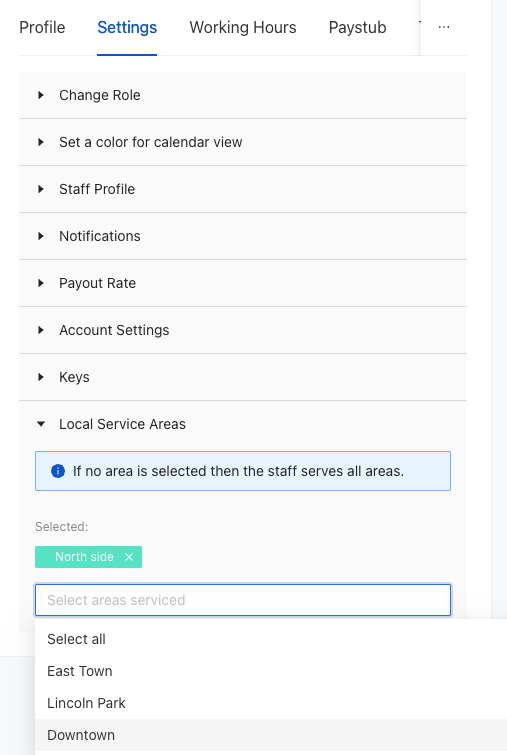
You can assign mulitple areas to a staff from their Staff Profile Page.
- Navigate to staff profile page
- Go to Settings Tab
- Expand the Local Service Areas Accordian
- Select the areas that the staff member serves
Assign Areas to Customers
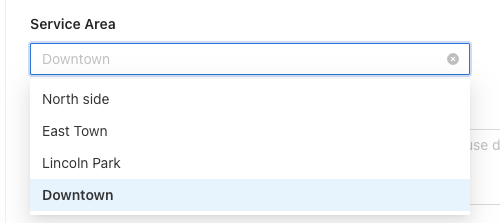
Assign areas to customers in their profile
In the customer profile tab underneatch address you have the drop down for the area the customer is in .
Appointment Requests
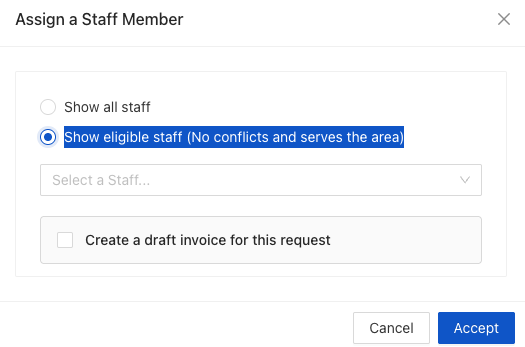
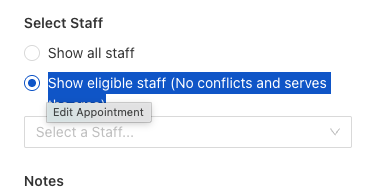
When accepting or editing an appointment request you can filter for staff members who serve the area the customer is in.
Accepting Appointment Request
Editing Appointmetn Requests
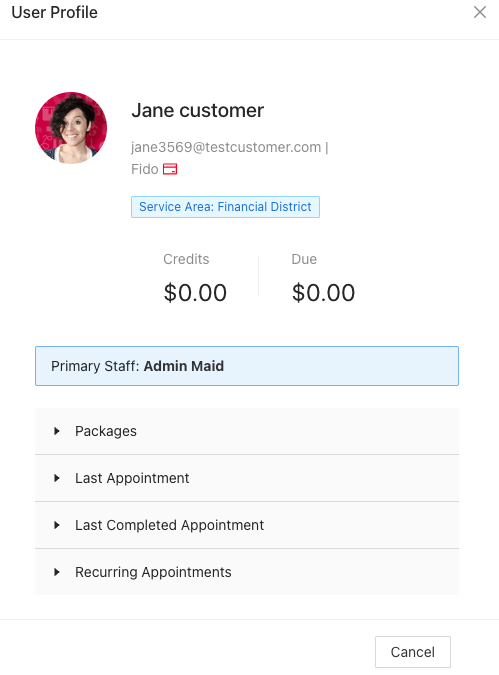
Customer Quick Profile View
The quick profile view can be accessed by clicking on the name of the customer in the appointment request and shows the local area.
Was this article helpful?
That’s Great!
Thank you for your feedback
Sorry! We couldn't be helpful
Thank you for your feedback
Feedback sent
We appreciate your effort and will try to fix the article